
fMSX

VGB

VGBA

iNES

MG

ColEm

Speccy

AlmostTI
|
fMSX |
VGB |
VGBA |
iNES |
MG |
ColEm |
Speccy |
AlmostTI |
 Windows |
 Android |
 Symbian |
 How? |
 Who? |
 Tell! |
| Follow @GarageResearch Tweet |
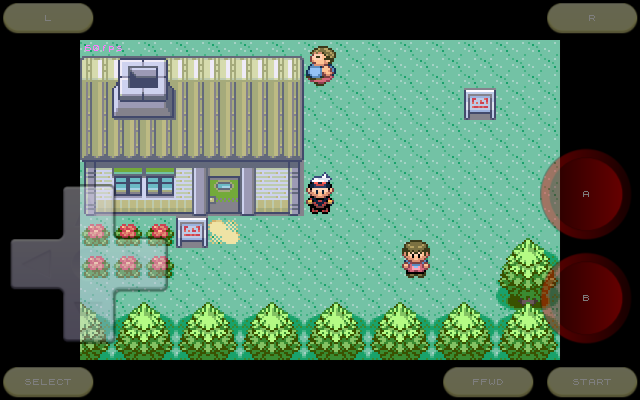
Emulators are programs that run software written for old computers or videogame consoles on the new hardware. Essentially, an emulator makes old software "think" that it is running on the original hardware, while it actually runs on your computer. I am creating emulators since 1993 and have made quite a few of them. For those who would like to try making an emulator on their own but do not know where to start, I have written a short introduction into the craft.
Originally, I developed emulators for PCs and Unix workstations. Once the mobile devices, such as cell phones and tablets, became capable of emulating older hardware, I started porting my emulators to these devices. Thus, at this page you will find my applications for Android-based phones and tablets, as well as some useful tips on setting them up.
If you work for a game company that would like to run its legacy games on mobile phones or other hardware, and need help, contact me.
 |
Optimized for Android Emulation and screen rendering are heavily optimized for Android platform using hand-written ARM assembly and OpenGLES. |
 |
Fast-Forwarding The fast-forwarding feature lets you quickly skip through long dialogs and demo sequences. |
 |
Joystick Emulation The joystick is emulated with hardware keys, virtual joypad, or accelerometer. Sony Xperia Play, Nyko, MOGA, iCade, and Sixaxis controllers also supported. |
 |
Freeze/Restore The gameplay can be saved at any moment and restored to the same point later. Emulators will also save state on exit, letting you restart where you have left off. |
 |
Mouse Emulation For the old software that requires a mouse, it is emulated with the touch screen. |
 |
Recording Music The soundtrack can be saved to a MIDI file to be played back later or used as a ringtone. |
 |
Compressed Files The emulators will automatically process files with .zip (WinZIP) and .gz (GZIP) extensions. You do not need to unpack these files. |
 |
Built-in Debugger Many emulators include a built-in debugger for hacking or developing your own retro software. |
 |
Cheats Cheatopedia offers hundreds of cheats for popular games, or you can enter your own cheat codes. |
 |
Screenshots The emulators will save stamp-sized screenshots for each game you play, and show them in the file selection dialog. |
 |
State Exchange State Exchange lets you swap gameplay states with other users playing the same game. |
 |
Network Play The NetPlay feature lets you play with other users over local network or Internet. |
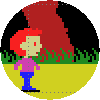 |
Normal Display The picture fills the center of your device screen, while retaining the original display ratio. |
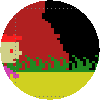 |
Stretched Display The picture is stretched horizontally to fill the entire device screen, for the biggest possible size. |
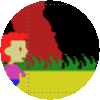 |
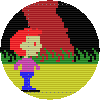
Softened Display The picture is softened, hiding individual pixels, as if it were shown on an old analog TV. |
 |
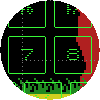
TV Scanlines Horizontal raster lines are added, simulating analog TV interlace effect. |
 |
Keyboard Emulation The keyboard is naturally emulated with the hardware keyboard or the on-screen virtual keyboard, in case your Android device lacks a real one. |
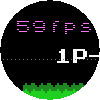 |
Frame Rate Display The frame rate counter shows how fast your emulation is running. The ideal rates are 60Hz for NTSC video and 50Hz for PAL video. |
Over the last couple of weeks, I've released updates to four of my emulators: VGBAnext 6.6.4, fMSX 6.0.4, MasterGear 4.9.5, and AlmostTI 3.1. All four are now using Android SDK-31 (i.e. Android 12), JDK 11, and the latest DropBox APIs. Additionally, AlmostTI now allows placing shortcuts to the Android home screen.
Released iNES 6.1.4, a new version of my NES, Famicom, DiskSystem, and VS-System emulator. This release makes the final fix to physical gamepad button assignments and fixes a few possible crashes. Also showing folder name in the title bar now, rather than complete path.
Published MasterGear 4.9.3 this morning, finally fixing keyboard key assignments and no longer displaying the complete folder path in the File Selector title. Just the folder name is shown instead.
VGBAnext 6.6.2, a new version of my universal GameBoy Advance, GameBoy Color, GameBoy Classic, NES, and Famicom emulator for Android, corrects gamepad button assignments to keyboard keys, fixes several possible crashes and a .ZIP file vulnerability reported by Google.
Released ColEm 5.6.4, finally fixing the keyboard key assignments and replacing the complete path in the File Selector title bar with a folder name.
I've published fMSX 6.0.3, a new version of my MSX, MSX2, and MSX2+ emulator. This release adds another (hopefully final) fix to keyboard key assignments, fixes several possible crash sources, and improves File Selector look.
Just released Speccy 5.9.4, finally fixing assigning gamepad buttons to keyboard keys. Also fixesd a few possible crashes and made File Selector title bar somewhat nicer.
I've published iNES 6.1.3, a new version of my NES, Famicom, DiskSystem, and VS-System emulator. This release fixes virtual gamepad layout in Android 12, physical gamepad button assignments, a security issue unpacking .ZIP files, several possible crashes, and a few other issues.
Just released ColEm 5.6.3, a new version of my ColecoVision and Coleco Adam emulator. This release targets Android 11 (SDK-30 API) and fixes a bunch of issues, including virtual gamepad on Android 12 devices and assigning gamepad buttons to keypad keys. Several possible crashes and a security issue when unpacking .ZIP files have also been fixed, among other things. Please, note that the method to get cheats back has changed in this version. As you remember, I had to disable cheat features to avoid Google staff banning the app from the store. You can easily reenable cheats though by downloading this file and clicking on it in the File Selector:
|
System ROMs |
|
Fast-Forwarding |
 |
Built-in Menu |
 |
Keyboard Emulation |
|
Network Play
|
|
...
|
|
![[#]](../icons/text.gif) Google Play Market
Google Play Market
|
|
All my products are published on the Google Play Market. Please, do not forget to vote! |
|
EMUL8 Discussion Group
|
|
Report and discuss your problems here. You may need to create a Google account to post to this group, but you do not have to become a member. |
|
|
iNES for Android
|
![[QR]](QR-VGBA.png)
|
|
||
|
|
MasterGear for Android
|
![[QR]](QR-MG.png)
|
|
||
|
|
Speccy for Android
(also see
free version)
|
![[QR]](QR-Speccy.png)
|
|
||
|
|
fMSX for Android
(also see
free version)
|
![[QR]](QR-fMSX.png)
|
|
||
|
|
ColEm for Android
(also see
free version)
|
![[QR]](QR-ColEm.png)
|
|
||
|
|
AlmostTI for Android
|
![[QR]](QR-ATI.png)
|
|
||
|
|
VGB for Android
|
|
|
||
|
|
VGBAnext for Android
|
|
|
||
The best ways to get help are by reporting your problem on the forum or by emailing me directly. Due to the large number of requests and limited time, I can't handhold you or help you learn how to use my apps. I can only help you if you have found a geniune bug and can explain what it is in clear terms. Generally, it takes a week or two to resolve most issues, unless I am sick, busy, or you are asking about something way over my head.
Also note that reporting problems in a Google Play review is not very helpful, as it makes more difficult for me to respond to your complaint and clarify what the problem is. Adding negative rating to your Google Play feedback makes it almost certain that I will not waste my time trying to help you. Thus, start by using the forum or emailing me to get help.
To make my job easier, make sure you...
"adb logcat" command on PC (part of Android SDK).
You can find a huge collection of public domain games for old game consoles at the PD ROMs web site. For both legal and ethical reasons, I cannot and will not tell you where to download commercial games for running them with my emulators, even if you email me about it. If you really need to, use an Internet search engine instead. Please, do not download and run any software that you do not already own (i.e. legally bought a cartridge with the same game). It is the right thing to do.
Aside from using a pirated version (that is known to fail randomly, on different features) and low disk space, this problem may sometimes be caused by a package upgrade. You can fix it by completely removing emulator from your device, then reinstalling it from the Google Play.
To protect against piracy, I had to introduce the Google Play license check into commercial versions of my Android apps. Every now and then, the license check will use the Google Play Store app on your device to see if you have actually bought my app. This operation is completely transparent to the user, unless it fails. My statistics show that license checks fail for about 3% of people. In order to stay in the other 97%, make sure that
The two most common reasons are lack of free disk space and active USB connection to a computer that locks your storage from changes. Also, starting with Android 3.2+, Google essentially disabled writing to the external SD card. This means that if you place emulator files to the external SD card, emulators may not be able to save game states or screenshots. If you encounter this problem with your device, avoid it by always placing files to the internal SD card.
All my applications run normally on rooted devices. There is a catch though. If you have a rooted device with LuckyPatcher or some other cracking tool installed, my products will not run on your device. You always have a choice of removing the pirate tools: once they are gone, my applications will run, whether your device is rooted or not.
First of all, my emulators will always try to mimic the actual hardware speed. You can easily verify that by enabling the "Video | Show Frame Rate" option and noting the "fps" value at the top-left screen corner. As long as this value stays close to 60fps (50fps for PAL hardware like ZX Spectrum), your speed is just fine. If you still want emulation to run faster than that, disable the "Video | Sync Display" option and watch things take off.
Let us now suppose that you are not getting the optimal speed. The emulation speed generally depends on your hardware, the other software you are running, and your emulation settings. Follow these simple steps to improve the speed:
To make FFWD button a toggle switch, enable
"General | Persistent Fast-Forward" option. Please note that if
you are trying to play games with fast-forwarding always on, you
may be better off following performance improvement
advice instead.
To quickly toggle the title bar, place your finger at the middle of the screen and flick it up to the top to hide the the bar. To make the title bar reappear, flick your finger down from the top of the screen. You can also choose to hide the title bar on startup, by enabling the "General | Hide Title Bar" option. This will also hide the menu though. To get the menu back, flick your finger down the screen.
There appears to be a bug in Android 2.x (Gingebread) that breaks OpenGLES views when you rotate the device. Starting from August 2013, all my emulators come with a workaround for this bug. So, if you are experiencing this problem, head to Google Play and download the latest version of my app.
When scaling pictures, the OpenGLES hardware always adds a bit of blur, to avoid ugly scaling artifacts. If you do not like the fuzzy picture, disable the "Video | Hardware Video Acceleration" option for the crystal clear image, at the cost of lower performance and shorter battery life.
When not using hardware video acceleration, the emulator will scale picture with the highly optimized assembler code running on your main CPU. This code is tailored for several different screen resolutions. The emulator will choose the resolution that best matches your screen, but may not completely fill it. If you would like the picture to fill your whole screen, enable the "Video | Hardware Video Acceleration" option.
Several emulators, such as
iNES
and
VGB,
let you change the color palette to the one you like. In order to
make a custom color palette for a game named Game.nes
or Game.gb, create a text file named Game.pal
with 64 (for
iNES)
or 16 (for
VGB)
color definitions in the RRGGBB format, one per line.
If you want to have the same custom palette for all the games,
place it into /sdcard/iNES/iNES.pal or
/sdcard/VGB/VGB.pal instead. Here is a sample
VGB
palette file:
FFFFFF ; Normal colors
989898
585858
000000
FFFFFF ; Background colors
989898
585858
000000
FFFFFF ; Sprite colors
989898
585858
000000
FFFFFF ; Window colors
989898
585858
000000
If you feel that the sound lags on your device (i.e. you hear shots a little bit after pressing the fire button), try decreasing the "Audio | Audio Latency" setting. Reducing it too much may cause sound distortions though, so be careful. If your audio becomes distorted, increase the latency. You may also want to try toggling the "Audio | Native Audio" option and see if it makes sound better.
If you are hearing clicks and pops in the sound, increasing the "Audio | Audio Latency" setting should fix your problem, at the cost of some sound lag. If the sound issues persist, set "Video | Frames to Draw" setting to 35%, or enable "Video | Hardware Acceleration" option to speed up display updates. You may also want to try toggling the "Audio | Native Audio" option and see if it makes sound better.
The echo often occurs on slower devices, where emulation cannot keep up with the audio, so the audio repeats, while emulation catches up. You can avoid this problem by optimizing performance to make emulator run faster. If the sound still echoing, increase the "Audio | Audio Latency" setting. You may also want to try toggling the "Audio | Native Audio" option and see if it makes sound better.
A lot of Android devices have limited multitouch that only lets you use two fingers. On these devices, you simply cannot press more than two virtual buttons at once. My emulators offer a workaround of sorts though. Go into the "Input | Edit Layout" setting and drag buttons so that they overlap a little bit. Now, you can press both buttons by touching the overlapped spot.
To resize joystick buttons, open the "Input | Virtual Joystick Size" setting and choose any size you like. To move buttons, open the "Input | Edit Layout" setting and drag buttons around the screen to the most comfortable spots. Keep in mind that when you rotate your device, each button will "stick" to the closest screen edges.
Normally, you will see transparent controls overlaid on top of the display. To change their opacity or hide the controls altogether, use the "Input | Virtual Joystick Opacity" and the "Input | Virtual Joystick Shape" settings. You can also control the joystick by physically tilting your device, if your device has an accelerometer and you enable the "Input | Tilt Joystick" option.
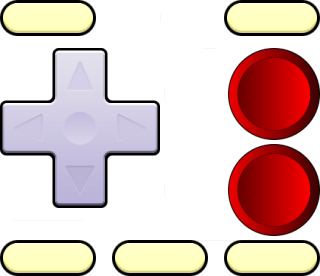 In my apps, released after August 14 2015, you can supply your own
virtual joystick skin. Make a
In my apps, released after August 14 2015, you can supply your own
virtual joystick skin. Make a Controls.png file using the
image at the right as your template, then stick it into the
emulator-specific folder, like
/sdcard/iNES or /sdcard/VGB. Then go into
"Settings | Input | Edit Joystick Layout" and select "Custom
Skin" as the joystick shape.
See the "Input | Auto Fire Settings" setting. It lets you choose what buttons are going to have auto-fire.
Of course you can use your generic keyboard, gamepad, or joystick with any of my emulators. If your gamepad has a mode switch, make sure it is set to the "generic gamepad" position. You may also want to visit the "Input | Assign Keys" setting in order to make a comfortable button layout for yourself. By default, your keys are going to be assigned as follows:
| Emulator | Keyboard | Gamepad | Xperia Play |
|---|---|---|---|
| FIRE-A | SPACE, A, S, D, F, G, H, J, K, L | A | CROSS |
| FIRE-B | Z, X, C, V, B, N, M | B | CIRCLE |
| FIRE-L | Q, E, T, U, O | L1 | L |
| FIRE-R | W, R, Y, I, P | R1 | R |
| SELECT | TAB | SELECT, X | SELECT, SQUARE |
| START | ENTER | START, Y | START, TRIANGLE |
| FFWD | SEARCH | none | SEARCH |
| MENU | MENU | MENU, MODE, A+BACK | MENU |
Starting Feb 26 2013, all new releases of my emulators natively support MOGA gaming controller. Simply turn it on, and once you see the "MOGA controller connected" message on the screen, it is ready to play with. You can still use MOGA with older versions of my products with the help of the free universal MOGA driver available from Google Play. This little app should let you use the MOGA with many applications that do not normally support it.
Starting Apr 5 2013, all my emulators support iCade joysticks. To enable iCade support, toggle the "Input | iCade Support" option. You may also want to customize the button layout via the "Input | Assign Keys" setting.
If you have got a Sony Sixaxis gamepad and a rooted Android device, you can use the gamepad over Bluetooth, with the help of the Sixaxis Controller app from Dancing Pixel. See the application web site for instructions.
For Nintendo Wiimote users, here is a short tutorial on using Wiimote with my applications, provided by Robert McCurdy.
Most of my emulators now support the NetPlay feature that lets you play with other users over your local WiFi network or the Internet. To establish connection, follow these steps:
In order to use network play, both players must be running the same game and have mutually visible IP addresses. It is only possible if
You will not see each other in the NetPlay dialog, unless these conditions are met.
Unlike stationary consoles which came with a pair of gamepads, the GameBoy and GameBoy Advance handhelds had a special serial cable that let users connect 2-4 handhelds together, for cooperative play. This cable is known as the GameLink and supported in my GameBoy emulators, VGBA and VGB. The GameLink connection works exactly the same way as a regular NetPlay connection.
When using NetPlay, each player must send a lot of data over the network and wait for the other player to acknowledge every packet they send. This wait time slows down the gameplay speed for both players. The wait is slightly worse for GameLink (in VGBA and VGB) because the data needs to be sent more often. While this slowdown is unavoidable and depends on your network speed, I am working to reduce it in the upcoming versions of my products.
Many games are available in different versions, in different languages, or with bugfixes. In order for a cheat code to work, you need to be running exactly the same version of the game that this cheat code has been discovered for. The codes will not work for a different game version, even on the real GameShark or ActionReplay hardware. Besides, many cheat codes found on the Internet contain errors and will not work on any game version. Given how unreliable cheats are to begin with, I usually can't answer the question why your cheat does not work.
The easiest way to use cheat codes is by going to Android menu and choosing "Cheats | Cheatopedia" there. Cheatopedia contains premade cheats for many popular games.
To enter cheats manually, go to the Android menu and choose "Cheats | Edit Cheat Codes". Use the cheat editing interface to add, delete, or edit cheat codes. The editor will not let you enter a code unless your code strictly follows one of the relevant formats:
| System | Device | Format | Comment |
|---|---|---|---|
| GBA | ActionReplay or GameShark | XXXXXXXX XXXXXXXX | "X" = digit from "0" to "9" or letter from "A" to "F". |
| CodeBreaker or GameSharkSP | XXXXXXXX XXXX | "X" = digit from "0" to "9" or letter from "A" to "F". | |
| GB/GBC | GameGenie | XXX-XXX-XXX | "X" = digit from "0" to "9" or letter from "A" to "F". |
| GameShark | XXXXXXXX | "X" = digit from "0" to "9" or letter from "A" to "F". | |
| NES | GameGenie | XXXXXX or XXXXXXXX | "X" = letter from "A" to "Z". |
| ActionReplay | XXXXXXXX | "X" = digit from "0" to "9" or letter from "A" to "F", the first two digits are usually "00" or "01". | |
| SMS/GG | GameGenie | XXX-XXX or XXX-XXX-XXX | "X" = digit from "0" to "9" or letter from "A" to "F". |
| ActionReplay | XXXX-XXXX | "X" = digit from "0" to "9" or letter from "A" to "F". | |
| CV | Memory POKE | XXXX-XX or XXXX-XXXX | "X" = digit from "0" to "9" or letter from "A" to "F". |
| MSX | Memory POKE | XXXXXXXX-XX or XXXXXXXX-XXXX | "X" = digit from "0" to "9" or letter from "A" to "F". |
Please note that emulators will only accept cheat codes in the above formats (whatever ones are relevant). They will not accept codes in any other formats. So, if you cannot enter a code, carefully check its format. Finally, be aware that not all cheats you find on the Internet work, even on the real hardware. Never mix cheats from different sources and try to use cheats that are known to work on at least some other emulator.
BACK key to return to the emulator.
Most of my emulators include the Cheat Hunter tool letting you search for your own cheats in any game. To use the tool, follow these simple steps:
Yes, you can extend Cheatopedia with your own cheats. In
order to do that, you will have to place a text file called
custom.chts into emulator-specific folder:
/sdcard/VGBA, /sdcard/VGB, or
/sdcard/iNES. This file should have the following format:
[(Custom Cheats)]
Menu=Game 1
Menu=Game 2
...

[Game 1]
Menu=Cheat 1
Menu=Cheat 2
...

[Cheat 1]
12345678 9ABCDEF0
87654321 0FEDCBA9
...
Instead of adding single-line cheats separately, you can also use a shortened notation for them:
[Game 1]
Code=5A5A5A5A 23232323 : Cheat 1
Code=76767676 01010101 : Cheat 2
Once you are done entering cheats and place
custom.chts
file into proper folder, you should be able to access your custom cheats
from the top Cheatopedia menu by clicking on "(Custom
Cheats)".
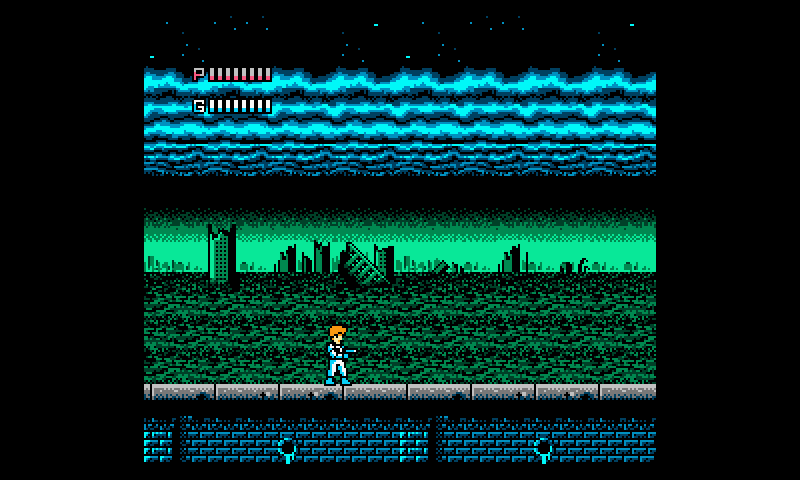 iNES emulates classic NES and Famicom videogame consoles from
Nintendo. It plays NES, Famicom, DiskSystem, and VS System games on
your Android phone or tablet. Save game at any time and restart from
that point later. You can also use GameGenie cheat codes, make
screenshots and save game music in MIDI format.
iNES emulates classic NES and Famicom videogame consoles from
Nintendo. It plays NES, Famicom, DiskSystem, and VS System games on
your Android phone or tablet. Save game at any time and restart from
that point later. You can also use GameGenie cheat codes, make
screenshots and save game music in MIDI format.
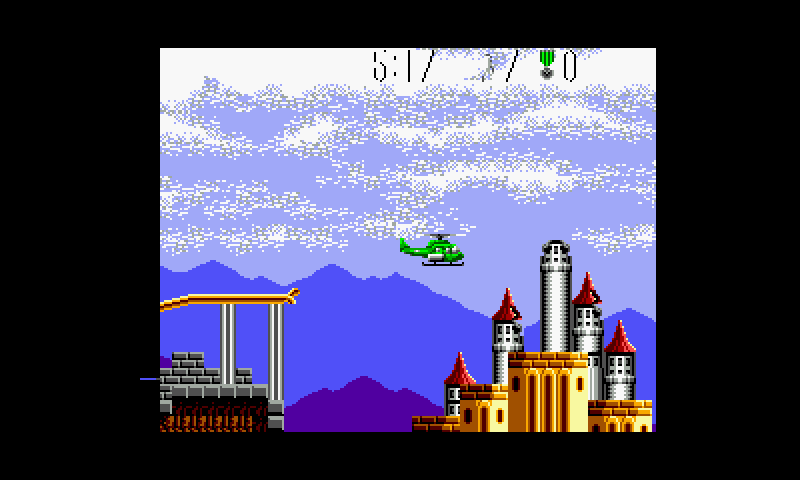 The MasterGear emulates several 8bit videogame consoles from
SEGA. It plays Master System, GameGear, Mark 2, Mark 3, SG1000, SC3000,
and SF7000 games on your Android phone or target. You can save game
at any time and restart from that point if you get killed, make
screenshots, and even save game music in MIDI format to play it later.
The MasterGear emulates several 8bit videogame consoles from
SEGA. It plays Master System, GameGear, Mark 2, Mark 3, SG1000, SC3000,
and SF7000 games on your Android phone or target. You can save game
at any time and restart from that point if you get killed, make
screenshots, and even save game music in MIDI format to play it later.
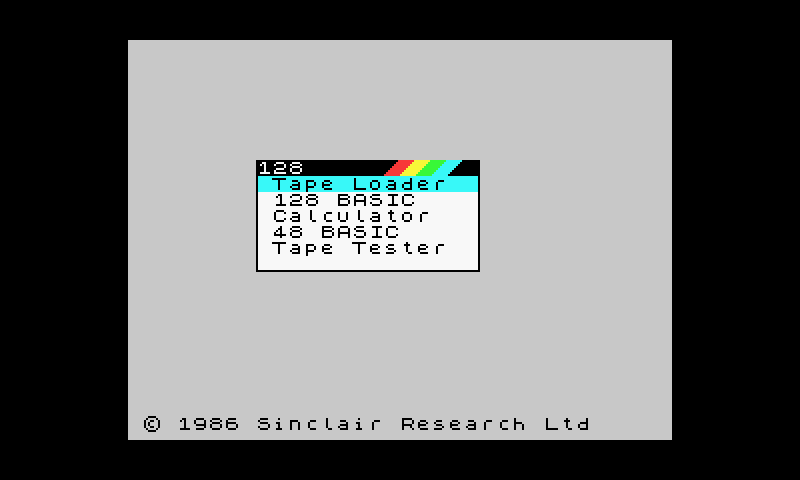 Speccy emulates 16kB, 48kB, and 128kB versions of Sinclair ZX
Spectrum, as well as Spectrum +2, +2A, and +3, as well as Timex Sinclair
models. Although I had done some ZX-related work in the past, for many
years I abstained from writing a Sinclair ZX Spectrum emulator, because
there were so many other Spectrum emulators around. On the other hand,
it felt like a gaping hole on my resume. So, here it is, yet another
Spectrum emulator, trivially named Speccy.
Speccy emulates 16kB, 48kB, and 128kB versions of Sinclair ZX
Spectrum, as well as Spectrum +2, +2A, and +3, as well as Timex Sinclair
models. Although I had done some ZX-related work in the past, for many
years I abstained from writing a Sinclair ZX Spectrum emulator, because
there were so many other Spectrum emulators around. On the other hand,
it felt like a gaping hole on my resume. So, here it is, yet another
Spectrum emulator, trivially named Speccy.
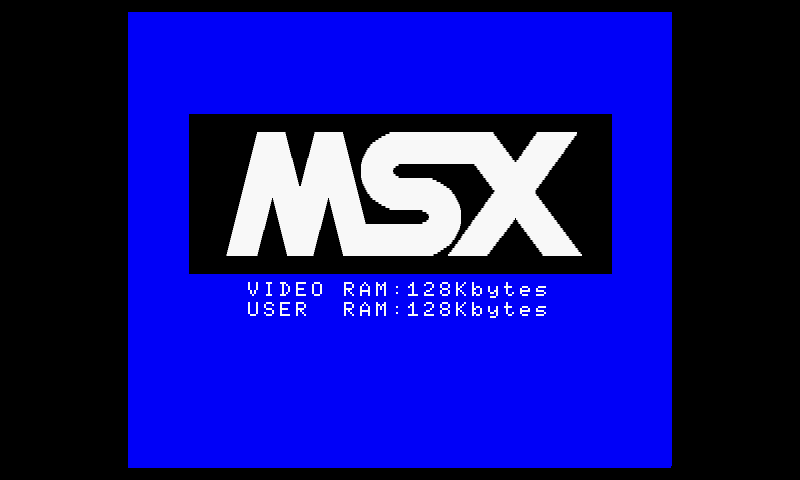 fMSX emulates the popular MSX home computer from the 1980s, its
MSX2 and MSX2+ upgrades, and many add-ons. fMSX is the first emulator I
wrote and one of the first MSX emulators from which many others have
been derived. Run your old MSX programs from disks or game cartridges on
your Android phone or tablet.
fMSX emulates the popular MSX home computer from the 1980s, its
MSX2 and MSX2+ upgrades, and many add-ons. fMSX is the first emulator I
wrote and one of the first MSX emulators from which many others have
been derived. Run your old MSX programs from disks or game cartridges on
your Android phone or tablet.
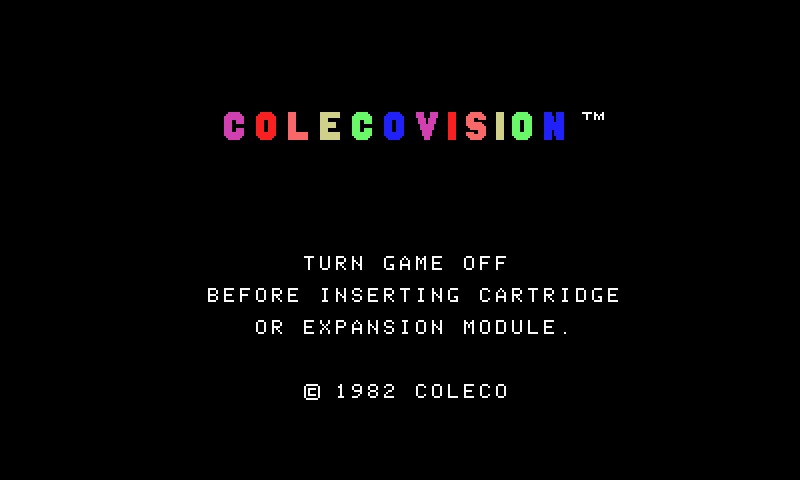 While developing fMSX, I got a request to take a look at the
ColecoVision videogame console. The request contained a short document
on the ColecoVision internals, from which I found that ColecoVision was
not much different from MSX. Thus, I got to work and in a short while
made a ColecoVision emulator, later known as ColEm.
While developing fMSX, I got a request to take a look at the
ColecoVision videogame console. The request contained a short document
on the ColecoVision internals, from which I found that ColecoVision was
not much different from MSX. Thus, I got to work and in a short while
made a ColecoVision emulator, later known as ColEm.
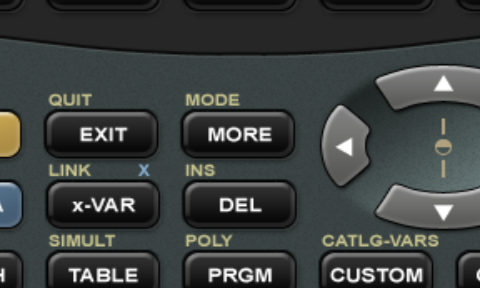 AlmostTI emulates a big family of programmable graphing
calculators from Texas Instruments, including TI-85, TI-86,
TI-81, TI-82, TI-73, TI-83, TI-83+, TI-83+ SE, TI-84+, and TI-84+ SE.
Pretty much every Z80-based TI calculator is covered. Please note
that in order to run AlmostTI, you will need the system
firmware ROM.
AlmostTI emulates a big family of programmable graphing
calculators from Texas Instruments, including TI-85, TI-86,
TI-81, TI-82, TI-73, TI-83, TI-83+, TI-83+ SE, TI-84+, and TI-84+ SE.
Pretty much every Z80-based TI calculator is covered. Please note
that in order to run AlmostTI, you will need the system
firmware ROM.
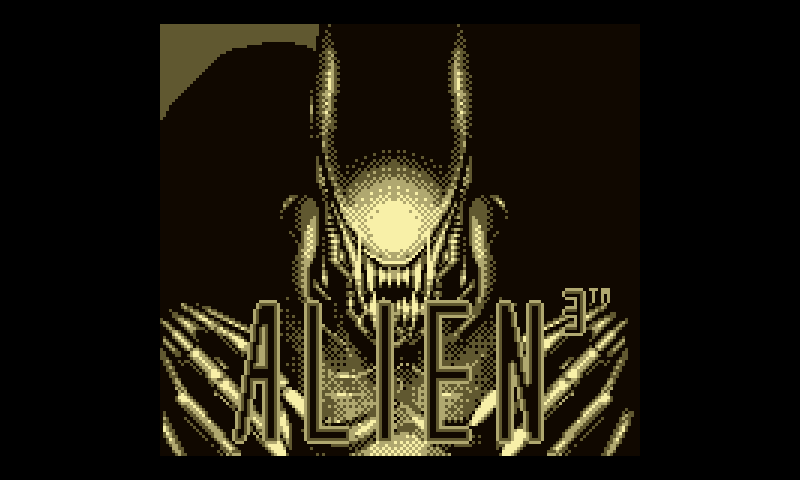 VGB emulates Nintendo GameBoy handhelds and their accessories. It
plays GameBoy, GameBoy Pocket, GameBoy Color, and Super GameBoy games on
your Android phone or tablet. VGB also supports the Pocket Printer,
GameGenie cheat codes, and more. Please notice that VGB will not
play GameBoy Advance games: you will need
VGB emulates Nintendo GameBoy handhelds and their accessories. It
plays GameBoy, GameBoy Pocket, GameBoy Color, and Super GameBoy games on
your Android phone or tablet. VGB also supports the Pocket Printer,
GameGenie cheat codes, and more. Please notice that VGB will not
play GameBoy Advance games: you will need
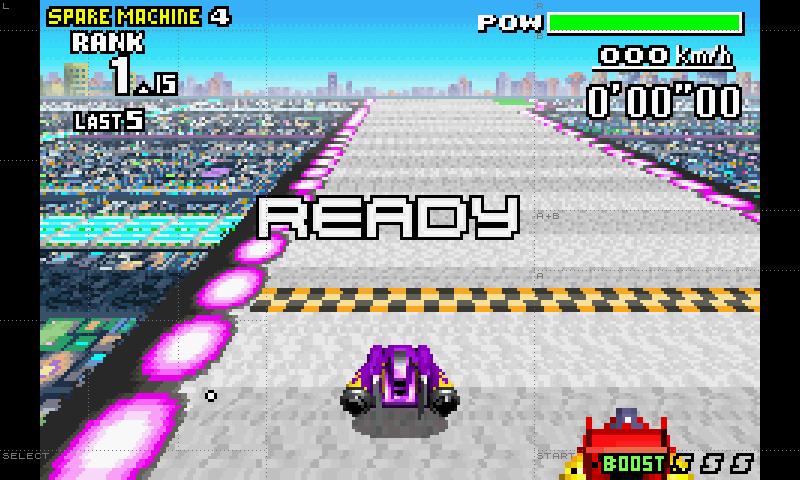 VGBAnext emulates the Nintendo GameBoy Advance handheld. It plays
GameBoy Advance games on your Android phone or tablet. Since Google
banned my iNES and VGB emulators from the
Google Play store, their functionality was merged into VGBA.
The new emulator, VGBAnext will play GameBoy Advance, GameBoy
Color, GameBoy Classic, Super GameBoy, NES, Famicom, DiskSystem, and
VS System games, all in a single app.
VGBAnext emulates the Nintendo GameBoy Advance handheld. It plays
GameBoy Advance games on your Android phone or tablet. Since Google
banned my iNES and VGB emulators from the
Google Play store, their functionality was merged into VGBA.
The new emulator, VGBAnext will play GameBoy Advance, GameBoy
Color, GameBoy Classic, Super GameBoy, NES, Famicom, DiskSystem, and
VS System games, all in a single app.